


Adobe Sign
-
Student gets the below email to sign the verification document.
-
The (Document Name) will need to be completed via Adobe Sign in order to continue processing your financial aid (i.e. grants, need based scholarships, loans, and/or work study). The form can be accessed by clicking the Complete Action Item link. If this is your first time using Adobe Sign, you will need to set up an account first. If the form requires more than your signature, you will be prompted to add additional participants signatures (i.e. spouse or parent e-mail addresses) once you have completed your portion.
-
-
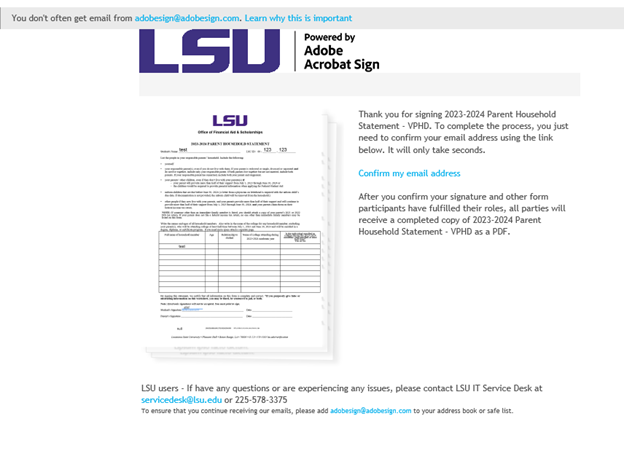
After the first person signs the form. They will get the below email. They must confirm their email address before the next participant is sent the form to sign it.
-
Once the email address is confirmed they will get the below message and the document will be sent to the additional signer(s)

-
The additional signer(s) will receive the email from Adobe that says their signature requested.
-
Additional signer(s) will click review and sign.
-
Select signature then click to sign.
-
All signers will receive a copy of the completed form via email.
Adobe Sign FAQs
Please check that you received an email to confirm your parent’s email address. If so, please confirm your parent’s email address and then your parent should receive the document to sign.
Go back to the original email sent and update your parents' email address. You will then receive an email to confirm their address.
Adobe Sign action item emails are always sent from as-finaid@lsu.edu. For new students, the email is sent to the email address used on the admission application. For continuing students, the email will be sent to your LSU email. Be sure to double-check junk/spam folders of the email applicable to your student status.
If you are not married then the spouse signature can be skipped. If it will not allow you to skip the spouse signature you may sign as yourself again.
Adobe Sign documents cannot be submitted as screenshots or files to Workday. These must be completed and submitted through Adobe Sign. Once it is submitted, we will be sent the document for review and verification.
Non-matriculating students are advised through University College. UC students can schedule a virtual or in-person appointment through the Navigate Student app.
Office Hours: Monday – Friday; 8:00 – 4:30 PM (Central Standard Time)
Email: ucinfo@lsu.edu
Phone: 225-578-6822
Location: 150 Allen Hall